
Setting up default styling for your website helps with consistency across your website. It also improves efficiency when you have established a solid base to start from.
Before you begin, have an idea about the colors and fonts you wish to use for your website, and how you intend to use them. You will be able to easily change them later.
Every new Amibe website receives a sample page with all elements that default styling can be set up for. This sample page can be used to assist with these defaults.
How To Do It
From your Dashboard:
- Navigate to Templates > Saved Templates using the left navigation menu.
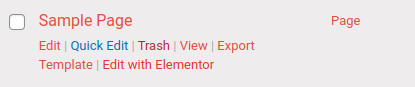
- Locate the Sample Page, and edit it using Elementor.
- Once in the Elementor editor, click the Site Settings menu icon in the top left corner
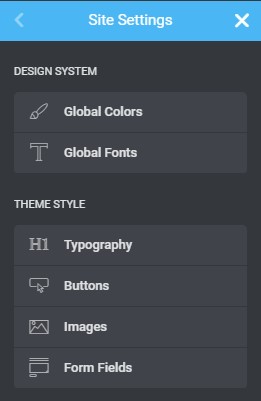
- This loads the Elementor Site Settings editor, which includes settings for the default styling of your website.
- Now, using the Sample Page as a reference, adjust each setting as you wish. The Sample Page shows you exactly how each default style setting will look on your website.
- Once you’re complete, click the Publish button in the top right corner to save your changes.



Additional information
- After you set Global Colors and Fonts, save these settings (by clicking the Update button) and then, once saved, refresh the page so that these become available in the other settings.